Table of Contents
Group details
You see the name of the group and a list of all applications of this group with their current running status.
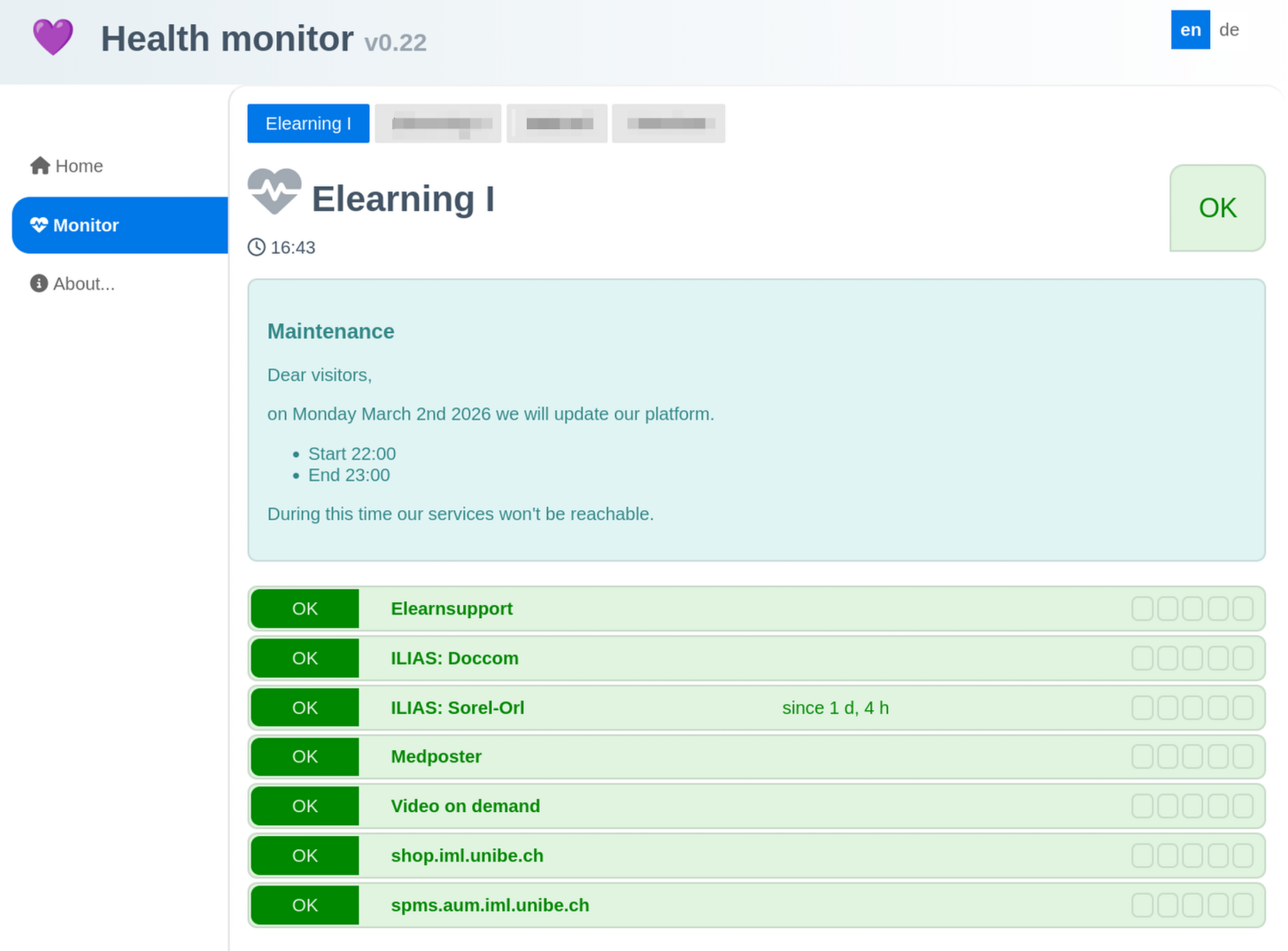
On top
- The navigation between availableapplication groups. The currently active group is highlighted. Click on another group name to switch to it.
- The title shows the name of the group.
- On the right is the total status of all visible applications.
Message
If an administrator activated a message box you see a message box. Here you will get information about announcements or a status about a current incident.
Application status
Each application of the group is shown as a horizontal bar. From left to right are these data
- Status of the application. It can be
- OK (green)
- Unknown (violet)
- Warning (orange)
- Critical (red)
- Name of the application
- A time since when an incident is known. If the status switches back to OK then this timer is visible for 3 days
- Status of the last 5 checks as small colored boxes.
On the right is a total status that switches to the worst status of all applications.
If an admin enabled it you can see an additional notification on top. You can get informed about planned maintenance windows or details about a known current troublemaker.